How to Monitor Your Meta Tags
Meta tags don’t break the visible page. They break the metadata layer that sits on top of it
(literally, in the <head> of the document). The damage shows up later and somewhere else, like a
page that drops from the index after a deploy, or a branded link that turns generic in WhatsApp.
Before we get into where things go wrong or what to watch, it helps to know what these tags are and how they’re supposed to work.
What Are Meta Tags?
Meta tags are HTML elements placed in the <head> of a document. They’re invisible to
visitors but read by the machines that process the page: search engine crawlers, web
scrapers, social platforms, AI agents, and your browser.
Because they produce no rendered output, a missing or malformed tag looks identical to a correct one. The failure only surfaces wherever the tag is consumed.
Meta tags is a loose label for several distinct tag types. Grouped by job, a typical
<head> looks like this:
<head>
  <!-- SEO -->
  <title>Product Name | BrandName</title>
  <meta name="description" content="...">

  <!-- Social -->
  <meta property="og:title" content="...">
  <meta property="og:image" content="...">
  <meta name="twitter:card" content="summary_large_image">

  <!-- Crawl control -->
  <meta name="robots" content="index, follow">
  <link rel="canonical" href="https://example.com/page">

  <!-- International -->
  <link rel="alternate" hreflang="en-US" href="https://example.com/page">

  <!-- Technical -->
  <meta charset="UTF-8">
  <meta name="viewport" content="width=device-width, initial-scale=1">
</head>
<title> is technically its own HTML element, not a meta tag, but it’s grouped with them
in SEO and monitoring contexts, so we treat it as one here. The same applies to <link>
elements — canonical and hreflang are both <link> tags, not <meta> tags, but they live
in the <head> and serve the same metadata function. Schema markup (JSON-LD, microdata)
often gets grouped in as well, but it’s a technical-SEO topic in its own right, with its
own monitoring checks and its own guide.
Beyond SEO: What else do meta tags impact?
The impact of a broken meta tag depends on which surface consumes it:
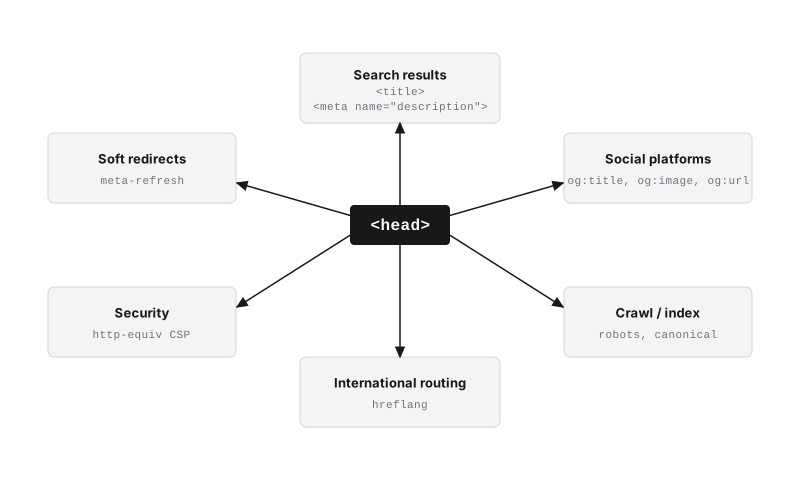 A single HTML
 <head> element feeds multiple consumer surfaces.
| Surface | What breaks when the tag is wrong |
|---|---|
| Search results | Title: ranking signal + CTR. Description: CTR only |
| Social sharing | OG tags control every preview card on Facebook, LinkedIn, X |
| Crawl budget / index | robots, canonical → duplicate indexing, wasted crawl budget |
| International targeting | hreflang → wrong language/region version served |
| Security | http-equiv CSP → policy weakened or absent |
| Internal redirects | meta-refresh → untracked soft redirects, canonical issues |
None of these situations returns an HTTP error, which is what makes them easy to miss. The sections below take each tag in turn: what it does, how it breaks, and how to catch the breakage early.
Title and Description: SEO meta tags
Title
The title tag is the single strongest on-page SEO signal and the most visible one. It appears in the browser tab, the search result, and as the fallback text for social shares. It gets truncated at roughly 60 characters or ~600px, which varies slightly with the user’s viewport (one of the beautiful, responsive constraints that developers, designers, and marketers all have to live with). Anything past that limit is invisible in the SERP. You can use regular expressions in your monitoring checks to assert optimal length ranges.
Beyond length, a convention worth enforcing is format. Many brands use the pipe character,
Descriptive Title | BrandName, which saves a little horizontal space over AI’s favorite
typographical character, the em dash (—).
The classic monitoring case for title elements is a post-deploy CMS template regression.
The title variable stops resolving and every page starts rendering the literal string
Page Title | BrandName.
Meta description
The meta description is not a ranking factor; it influences click-through rate, and whether Google shows your text at all or rewrites it. According to Semrush, Google rewrites descriptions roughly 72% of the time, generating an intent-matched snippet from page content instead. So why bother writing one?
Because of how the rewrite itself works. Google rewrites by reading your page alongside the description you supplied, so a tight, intent-matched description is both the raw material it draws from and the fallback when it can’t generate something better. A vague description gives it less to work with; a missing one is strictly worse, because Google then pulls arbitrary on-page text and the description can no longer feed social previews either. The rewrites are also free feedback. Tracking which descriptions get changed, for which queries, and to what tells you where your copy is missing actual user intent.
Monitoring here checks your own page source, rather than what Google renders in the SERP.
That’s what makes the optimal range worth enforcing: you control the description, so a check
can assert it’s present and within 120–160 characters, regardless of what Google does. The
same check catches the outright failures too, such as a missing description, or
post-deploy breakage that leaves a literal {{ page.description }} in the markup.
Open Graph: Social Sharing
Open Graph is a protocol Facebook introduced to let any web page become a “rich object in the social graph” — a structured preview rather than a bare link. It was adopted well beyond Facebook: LinkedIn, Pinterest, and others read OG tags, and X’s Twitter Cards are a separate spec (but monitored the same way).
OG tags are separate from the SEO title and description that drive your search result, which is why a page can rank well yet still share without a proper card. They’re what you set to control that card; leave them off and the platform guesses. Facebook documents that without them, its crawler “uses internal heuristics to make a best guess” at the title, description, and image.
According to the Open Graph protocol documentation, four tags are required to
turn the page into a valid graph object: og:title, og:type, og:image, and og:url.
The rest are optional. og:title is independent of the page <title>. If it’s not set, each
platform decides what to display. Set it when you want the social headline to differ from the SEO
title. Any of them can break on its own, and the image fails most visibly, so we’ll start there.
Why is your Open Graph image is missing?
Because the social platforms require absolute URLs to fetch the image correctly, using relative paths for Open Graph image URLs can cause social media platforms to fail to display the image in link previews.
<!-- Bad: relative path — the crawler can't resolve it -->
<meta property="og:image" content="/images/og-card.png">

<!-- Good: absolute URL — fetchable from anywhere -->
<meta property="og:image" content="https://example.com/images/og-card.png">
Monitoring should assert that og:image is present and points to an absolute URL. If you have a
format convention to enforce, append the file-type to the pattern (^https?://.+\.png$ for
PNG only). In Testomato, you can also assert the image’s dimensions through the dedicated Open Graph: image:width and Open Graph: image:height checks (the recommended dimensions are
1200×630px).
 Without og:image: no thumbnail, title and description from meta tags.
 With og:image: thumbnail, correct title and description.
Aggregating social signals with og:url
og:url tells a platform which URL a share belongs to. Facebook uses this for aggregating Likes and
Shares for the page at the URL that you indicate. So when one page is shared with different tracking
parameters, og:url is what credits all of it back to a single address.
That address is usually the same canonical URL you give search engines (covered in its own
section below), though the two can legitimately differ.
For example, some sites set a per-region og:url so Likes
aggregate by market. Either way, the point to monitor is the same: og:url should stay one
clean, undecorated URL. A stray tracking parameter or a template bug fragments your social
engagement across addresses, and a check that og:url matches the URL you expect catches it.
Robots: Crawling and Indexing
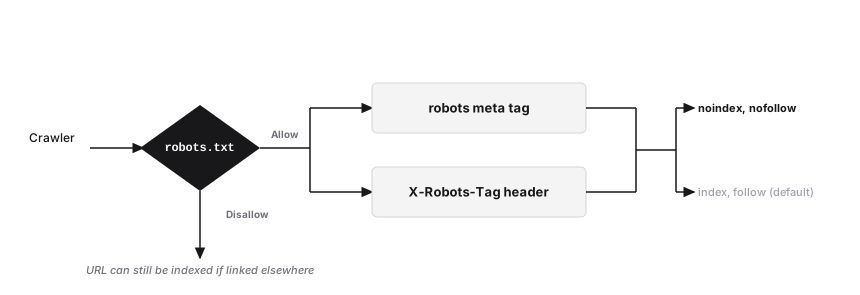 robots.txt controls access. The meta tag and header control what happens after.
The robots meta tag tells a search engine what to do with a page after it has crawled it —
above all, whether to index it. It lives in the <head> as <meta name="robots" content="...">,
and when it’s absent the default
is index, follow: Google assumes you want the page indexed and its links followed. That default
is exactly why an accidental noindex is so damaging, and an accidental missing noindex
so easy to overlook.
The robots meta tag is one of three crawl-control levers that are easy to confuse:
- robots.txt decides whether a crawler may fetch a URL at all.
- the robots meta tag decides what happens after the fetch — but only on HTML pages.
- the
X-Robots-TagHTTP header carries the same directives as the meta tag, delivered in the response header instead of the markup, so it can govern non-HTML files like PDFs and images.
Crawl-blocking (robots.txt) and index-blocking (robots meta / header) are different jobs.
A noindex directive only works if the crawler can reach the page to read it.
Block that URL in robots.txt and Google never fetches it, never sees the noindex, and —
per Google’s docs — “the
page can still appear in search results, for example if other pages link to it.”
In practice you set and monitor two directives. noindex keeps a page out of search results —
staging, thank-you, and thin or private pages. nofollow tells the engine not to follow the
page’s outbound links, which mostly matters on user-generated content (ugc) like comments and forum
posts.
A staging environment typically includes a noindex directive to stay out of search.
If it gets promoted to production with that directive still attached, the server would keep returning
200 and the page looks normal to anyone visiting it — but the crawler reads the tag and stops indexing.
Pages fall out of the index over the following days as Google recrawls each URL. A check asserting the
production robots tag does not contain noindex catches this on deploy, before Google has had time to
act on it.
Testomato’s Robots Meta & Link check reads the on-page <meta name="robots"> tag, so it catches
exactly that. What it doesn’t read is the X-Robots-Tag header or robots.txt — so a noindex
delivered through the header, say on a PDF, is invisible to it. To cover that case, assert against the response headers
with the generic HTTP Response Header check instead. robots.txt should be located at the root of your site
and can be covered just the same as any other URL by checking the page itself; no custom check needed, only
HTTP status code and, optionally, a content check.
Canonical Link: Managing Duplicate Content
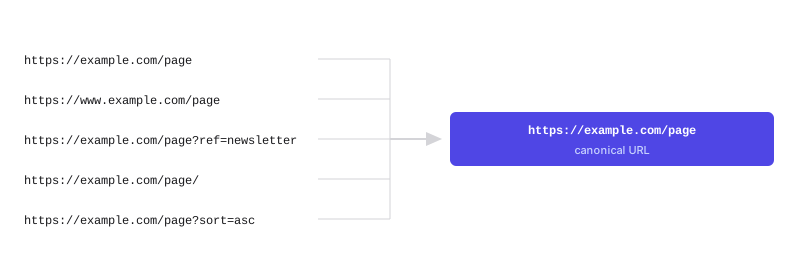 Multiple URL variants serve the same page. The canonical link names one as the preferred version.
The canonical <link> element tells search engines which URL is the “preferred” one when several
URLs serve the same or near-same content. The usual culprits for duplication include
www vs. non-www, trailing slash, query parameters, pagination, and printer-friendly variants.
Google treats the canonical
as a hint, not a directive. A rel="canonical" link tag and a 301 redirect are both strong signals; sitemap
inclusion is a weaker one. When signals stack and agree, Google has little reason to deviate. When they conflict, Google selects its own canonical, typically the URL it sees most consistently across inbound links and the sitemap. A canonical pointing at a 404, or contradicting a 301, tells Google the signals can’t be trusted and it stops following them.
The failure that matters in practice is a stale canonical. When a slug changes or a product is removed, templates that hardcode the canonical to a stored original URL keep emitting the old one. If that stale tag now points at a page that returns 404, Google discards it and assigns a canonical of its own choosing. What it chooses may or may not be what you intend.
Testomato’s Canonical URL link check asserts the tag’s declared value matches what you expect for the domain, protocol, and path. That check catches the stale case mentioned above. The check reads the declared string only and doesn’t fetch the target, so if the tag looks correct but the destination URL is dead, pair it with a status check on that URL.
Hreflang Link: International Targeting
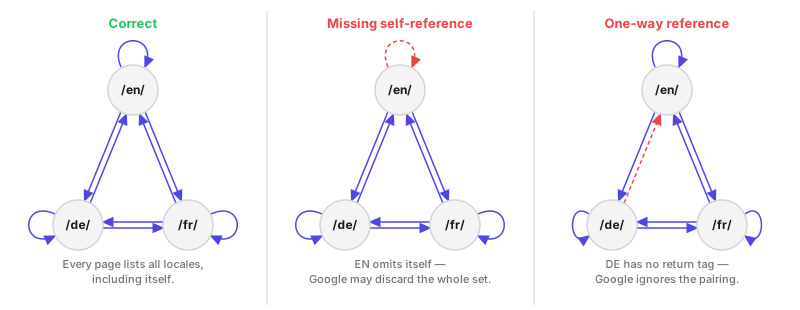 hreflang must be reciprocal. Every page must also reference itself.
An hreflang annotation tells Google which language and region version of a page to serve, declared as
<link rel="alternate" hreflang="en-US" href="...">. Get the annotations wrong and Google serves the
wrong language/region version in search results, or treats your localized pages as duplicates.
The rule that governs hreflang annotations is reciprocity. Google’s hreflang documentation requires every page in a language set to carry the same block of alternate links — one for each version, including a link back to itself. The set is identical on every page in the group.
x-default is the fallback returned when no hreflang value matches the visitor’s language or region. Set it to the page you want shown with no match or a language-selection page. Every page in the set must carry it, same as the other alternate links.
The realistic failure with hreflang links is a one-way reference. If /en/ links to /de/ but /de/ doesn’t link
back, Google can’t verify the pairing and ignores it — those pages won’t be treated as alternates
of each other. A template change that drops the hreflang block from one locale breaks every pairing
that pointed to it.
Testomato has no dedicated hreflang rule, so you assert the block with the HTML Source Code check
and an XPath expression — for example, that <link rel="alternate" hreflang="de-DE"> is present on
the page meant to carry it:
//link[@rel="alternate"][@hreflang="de-DE"]Technical and Security Tags
<meta charset="UTF-8"> and <meta name="viewport"> are the technical baseline — present on
virtually every modern page by default and rarely a source of failure. The tags worth monitoring
are <meta http-equiv> tags, if you have them, which let you set HTTP response headers from within the HTML.
The two http-equiv tags that you’re most likely to encounter are for Content-Security-Policy and meta refresh.
Content Security Policy
http-equiv="Content-Security-Policy" sets a security policy from the HTML rather than the
server. It’s the only option when you have no control over response headers — GitHub Pages,
for example, gives you no way to set them at all. Some directives don’t work in a meta tag (frame-ancestors
and report-uri among them), but for basic script and style policies it gets the job done.
If you’re running CSP this way, Testomato’s dedicated CSP checks won’t work since they read the response header. Instead, you can use the HTML Source Code check to verify your policy is in the markup.
Meta refresh
http-equiv="refresh" redirects the browser to another URL after a delay. Because it’s a soft redirect
with no 3xx status, Testomato’s HTTP Redirect Location check can’t see it,
and Google recommends against using it where server-side redirects are possible.
Ecommerce: Meta Tags at Scale
Meta tags are invisible on the page and ideal for templating, which is exactly why they get dangerous at scale. The same mechanism that lets you set a tag once and apply it everywhere will propagate a mistake just as widely. An ecommerce catalogue with tens of thousands of product pages can’t be reviewed by hand, and as AI moves into templating and content generation, the errors arrive in bulk too.
AI-generated and automated metadata
A Shopify template emitting {{ product.title }} | BrandName outputs “Untitled | BrandName”
for every product whose title wasn’t set, all at once. This is where automated monitoring
naturally supports content automation.
When AI or other automated processes write the metadata, conventions can drift. The drift stays checkable though, because each convention can be tested against the page the template renders:
| Element | Convention | Check |
|---|---|---|
| Brand name | Title ends with the brand | | BrandName$ |
| Description length | Between 120 and 160 characters | ^.{120,160}$ |
Monitoring becomes the verification layer at the end of the content pipeline. Your monitoring checks catch any outputs that diverge from your established conventions.
Assert against the template, not the page
If you have scaled content, you most likely already have abstractable patterns that can be used to monitor that content. It is impractical to check exact values on every page, which is why we look for ways to check patterns built into the template.
You test one or two representative pages, or perhaps by product category, but not all fifty thousand. The conventions you’re checking — separator style, brand suffix, length range — come from the template, so every product is generated with them, including ones you add later. One page stands in for the rest.
How to Monitor Meta Tags with Testomato
If you’re only here to learn about meta tags and how to monitor them, you can stop here. To see how to monitor meta tags using Testomato, keep reading.
When Testomato scans a page, it reads each tag and returns what it finds: the actual values your page is serving. The screenshot below shows five tags checked against the Testomato homepage:
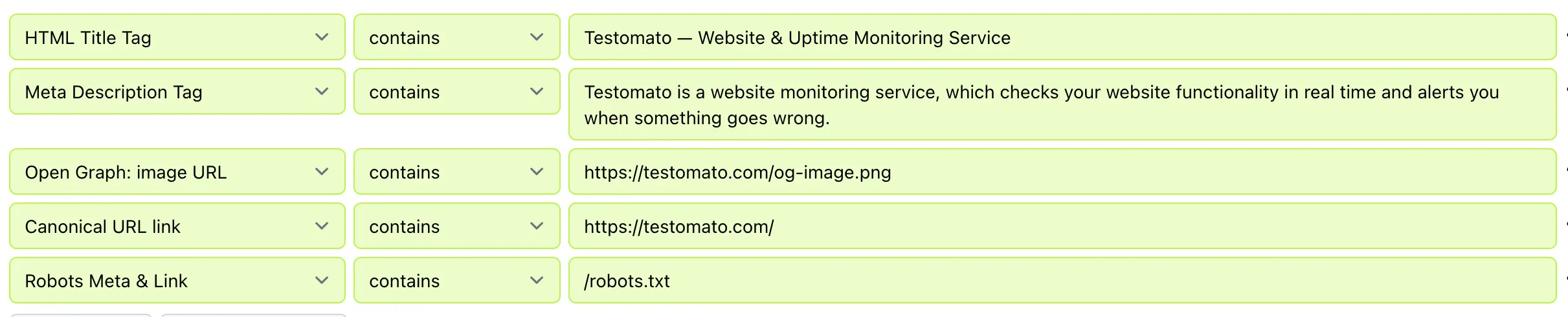
These five are the ones to start with. At minimum, assert each is non-empty using the auto-filled values that Testomatobot scrapes from your live site.
Pattern-based checks
Use regex patterns to assert format, length, and conventions, not just presence. Each row in the table below is one check. You can copy/paste the regular expressions listed here directly into your own checks.
| Check | Rule type | Assert | Protects |
|---|---|---|---|
| Title: brand convention | HTML Title Tag | | BrandName$ | Search |
| Title: length | HTML Title Tag | ^.{20,60}$ | Search |
| Description: length | Meta Description Tag | ^.{120,160}$ | Search / CTR |
| Description: non-empty | Meta Description Tag | .+ | Search / CTR |
| og:image (present, absolute URL) | Open Graph: image URL | ^https?:// | Social |
| og:url (expected domain) | Open Graph: url content | matches your domain | Social |
| Robots (production) | Robots Meta & Link | no noindex (and require it on staging) | Crawl / index |
| Canonical (present, correct) | Canonical URL link | your expected base URL | Crawl / index |
Situational checks
Add these when your site needs them. Each is covered in its own section above or in its own guide.
| Check | Rule type | When you need it |
|---|---|---|
| Twitter Cards | Twitter Card: card, title, image, … | control how links look when shared on X (see Open Graph) |
| Hreflang | HTML Source Code + XPath | a multi-region or multi-language site (see Hreflang) |
| CSP | Content-Security-Policy (+ per-directive) | you enforce a security policy (see CSP guide) |
| JSON-LD | JSON-LD (e.g. Product: name) | structured data for rich results (see JSON-LD guide) |
None of these failures show up on the page, which is the whole reason to monitor the markup instead of waiting for the symptom.
Monitor your meta tags with Testomato
14-day free trial. No credit card required.

Written by
Rudi Kraeher