Guide to Form Monitoring
What is the most important thing a user can do on your website? Access information? Organize data? Make a purchase?
Unless your site is focused only on serving text and media content, chances are users need to take some action. They need to sign up, upload, organize, or write. In order to take these actions, we provide them with an interactive user interface. We give them a form. Let’s talk about forms.
What is a web form?
A web form is an HTML element that collects input from a user and sends it to a server. Early forms let sites take a small amount of typed input, like a search query, instead of only serving static pages.
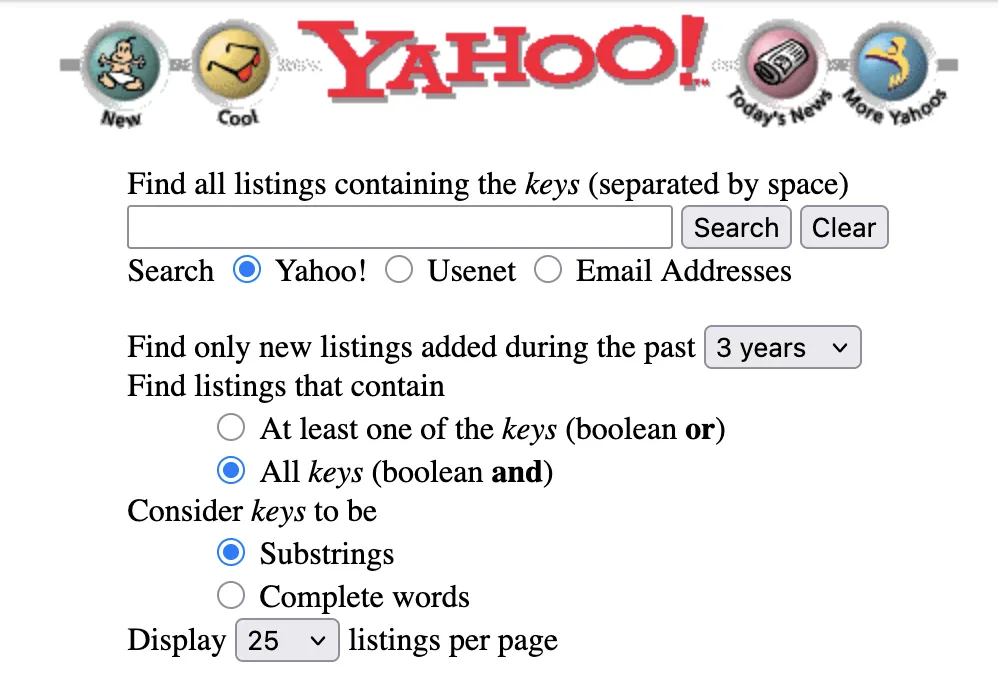
Since then, forms have gained more input types, built-in validation, and JavaScript-driven submission that doesn’t reload the page. A form today can be plain HTML, a JavaScript-rendered widget, or an embedded third-party tool, but it still does the same job: collect input and send it somewhere. The designs have improved a lot too!
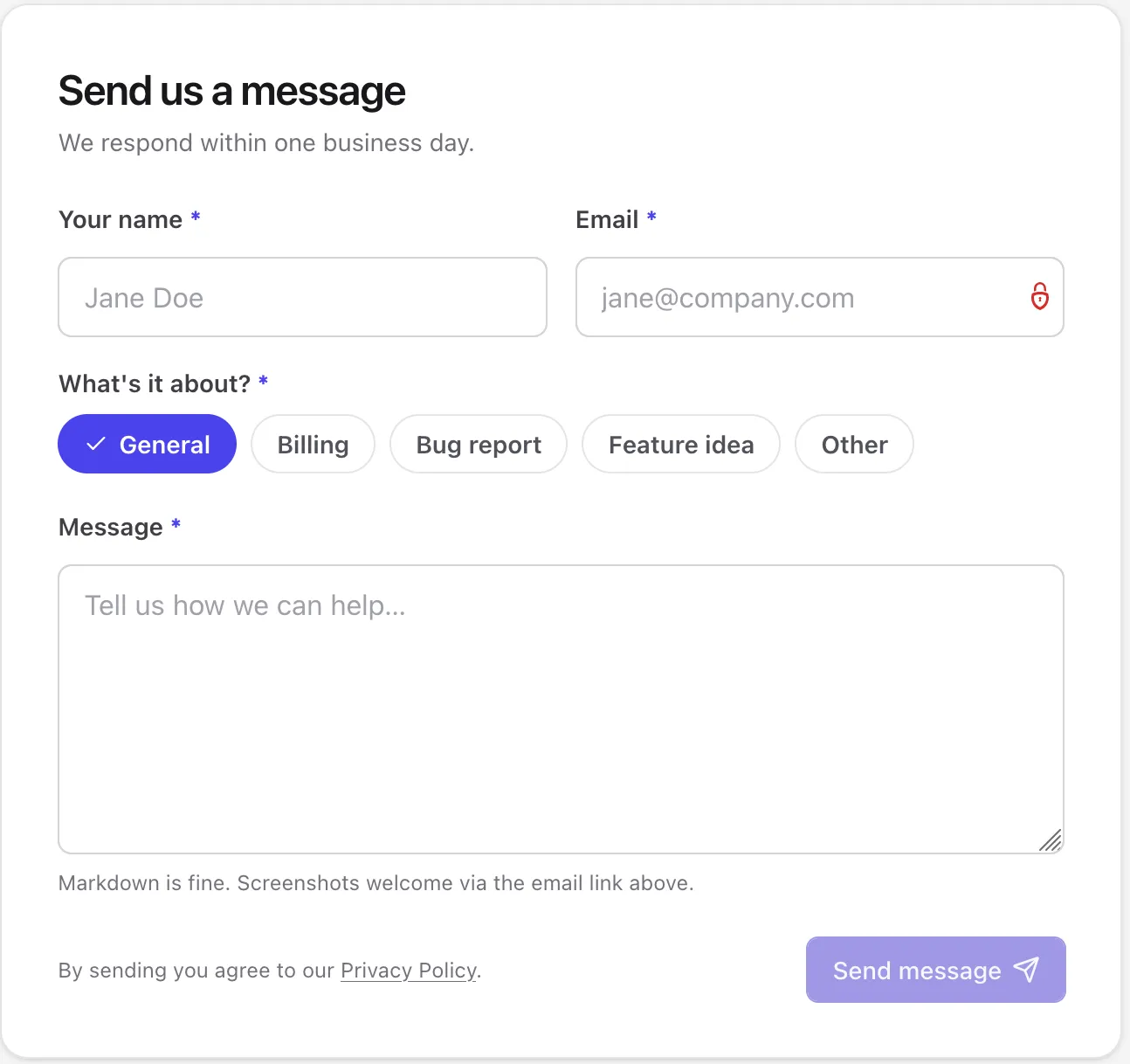
How do forms work?
A form’s action attribute sets the URL the data goes to. Its method attribute sets how the data is sent
— as a URL query string with GET, or in the request body with POST.
<form action="/contact" method="POST">
	<input type="text" name="name" />
	<input type="email" name="email" />
	<textarea name="message"></textarea>
	<button type="submit">Send</button>
</form>
When someone submits the form, the browser collects each field’s value, encodes them as name/value pairs, and sends the request. The server reads those values and does something with them — sends an email, stores a record, or returns a response.
That same request-response exchange is what an automated form monitoring check watches. It sends the request a browser would send, then checks what comes back.
What is form monitoring?
Form monitoring is an automated check that submits a form on a schedule and verifies the submission worked. It requests the page, finds the form, submits it with pre-set values, and checks the result against what you expect — a status code, a confirmation message, or both. If a submission fails, it alerts you.
Form tracking vs. form monitoring
Form tracking is generally for marketing purposes — to watch conversion rates and completion/abandonment, and to perform A/B testing that optimizes UX.
Form monitoring, on the other hand, provides a layer of protection by regularly and automatically checking that your forms are working and alerting you the moment something is broken.
If you are watching your forms via tracking tools without automated monitoring, the only way you’ll know that the form is broken is historical data showing dips in conversions and completion rates. You’ll only know that there is a problem after you’ve already lost users and money.
Why should you monitor your forms?
You should monitor forms if their functioning is critical to your website or business. Broken forms lead to lost conversions. Period.
If you use a form to capture leads, register users, and process payments, you’ll want to automatically ensure that they work as expected and get alerted the moment anything breaks.
What can go wrong?
Most problems with forms are related either to submission, validation, or delivery.
Submission failures
A submission failure happens when the request never reaches the backend, or gets rejected before it’s processed.
Bot and spam detection is a common cause — reCAPTCHA and similar tools can misjudge a legitimate visitor as a bot and block the request, sometimes for every visitor if the detection is misconfigured.
A buggy script can cause the same result without any bot detection involved. If the submit handler never fires, no request goes out at all, even though the form looks fine and validates normally.
Validation failures
A validation failure happens when the form rejects input that should be valid.
This is often self-inflicted. A plugin update can introduce a bug in a required-field check, or a bot-protection script can break in a way that doesn’t change anything visible — wrongly blocking submissions that have nothing actually wrong with them.
Delivery failures
A delivery failure happens after the form works. The server accepts the submission, and the visitor may even see a success message, but the notification email never arrives.
The cause is usually on the email side, not the form — missing or misconfigured SPF/DKIM records, a mail server that throttles sending after a spam incident, or a spam filter that intercepts the message before it’s sent. None of this shows up to the visitor or the site owner unless they go looking for it.
Types of form monitoring
There are two main ways that your tools can monitor forms. Either they can directly check the form submissions at the HTTP-level, or they run a headless browser and fill out the form like a user would. Each method has different benefits and limitations.
HTTP-level
HTTP-level form monitoring submits a form with a plain HTTP POST request, without running a browser or executing JavaScript. The field values are set once, when the check is configured, and reused on every run.
This is a real submission, not a simulation. Testomato’s own form checks work this way, sending the same POST request a visitor’s browser would send with the same side effects — an email gets sent, a database record gets written. There’s no dry-run mode, so it’s worth using test values that are easy to filter out of a CRM or inbox.
The tradeoff is that it only works on forms that submit through a plain HTML form action. A form that submits via JavaScript instead can’t be detected or submitted this way.
Forms behind JS-dependent bot detection, like reCAPTCHA v3 or Cloudflare Turnstile, run into the same limitation, since there’s no browser environment for those checks to evaluate.
Headless browser
Form monitoring with a headless browser runs a real, scripted browser — usually via a tool like Playwright or Puppeteer — against the live site. It loads the page, executes JavaScript, fills in the form fields, and submits it the way a person would.
This lets it handle forms that a plain HTTP request can’t — JavaScript-rendered forms and client-side validation.
It also supports multi-step flows — for example, logging in, adding something to a cart, and checking out — sometimes called synthetic transaction monitoring, since it’s testing a whole transaction rather than a single request.
The tradeoff is overhead. A browser session takes longer to run and more resources than a single HTTP request, and a script that mimics a specific user flow needs updating whenever that flow changes.
How to monitor website forms with Testomato
To set up a form check, Testomato crawls the page and finds the form’s fields. You fill in the values you want it to submit — a name, an email, a message — and it saves that as the check’s configuration. From then on, on a schedule, Testomato submits the form with those same values and checks what comes back.
When you test forms with Testomato, your project should meet some basic criteria:
- If the form’s submission is handled entirely by client-side JavaScript — with no native
actionattribute as a fallback — Testomato won’t be able to detect or submit it. - The form’s
actionalso needs to point to the same domain as the page — Testomato’s form detector doesn’t pick up forms that submit to an external domain. - If the form is behind a login, the Group it’s in needs sign-in credentials set up first.
If your project meets these criteria, you can set up form monitoring on your project.
All form checks should set up both a HTTP Status Code check as well as a Page Content (Text) that asserts the content that should be present after a successful submission.
A form can return 200 while the submission itself was rejected, so the content check confirms the real success message is there, not just that the page responded. This kind of false positive is more common than you’d think.
Set up your form checks
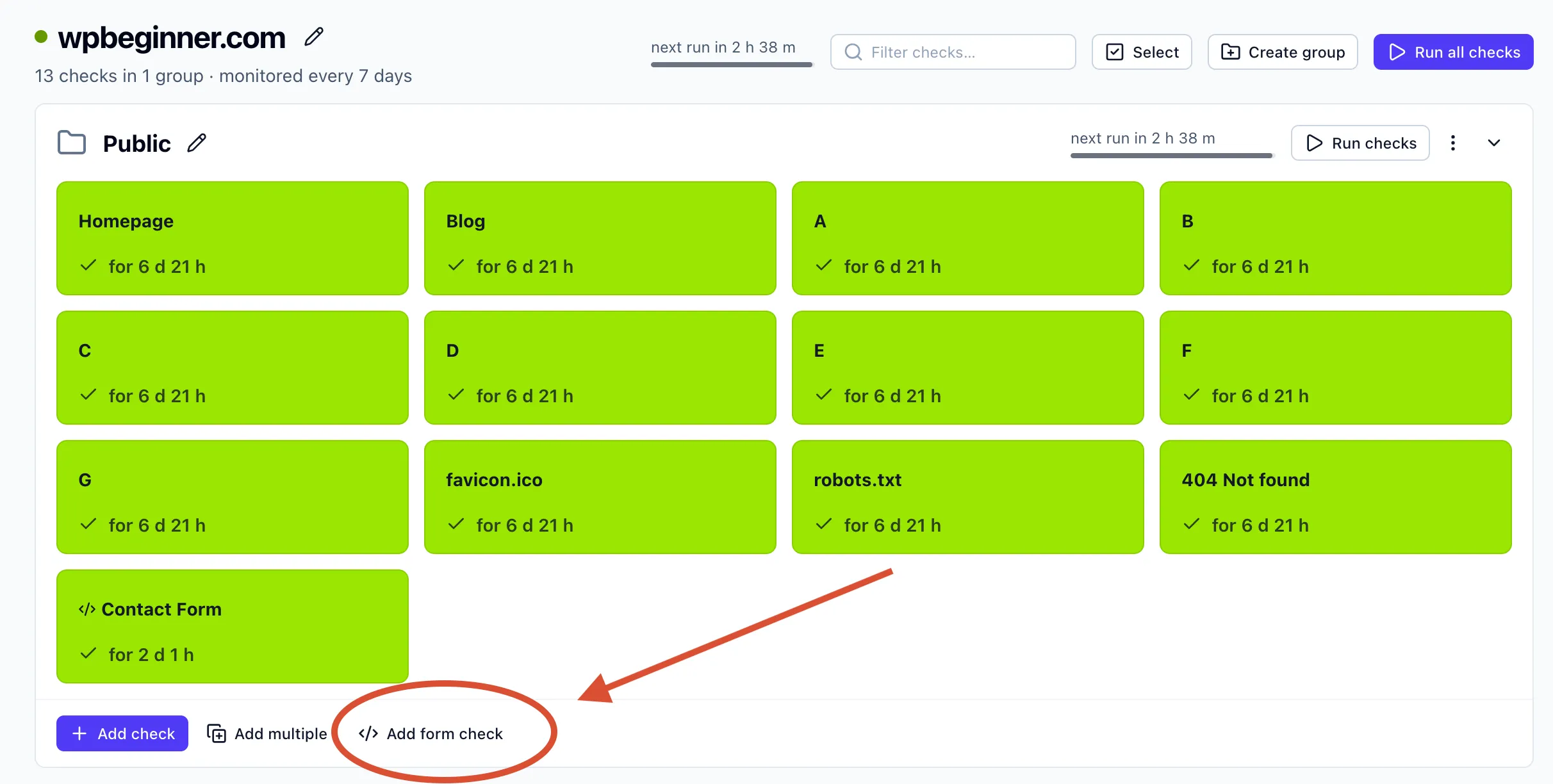
Form checks aren’t added the same way as other checks — there’s a separate Add form check button, next to Add check, that opens a dedicated flow.
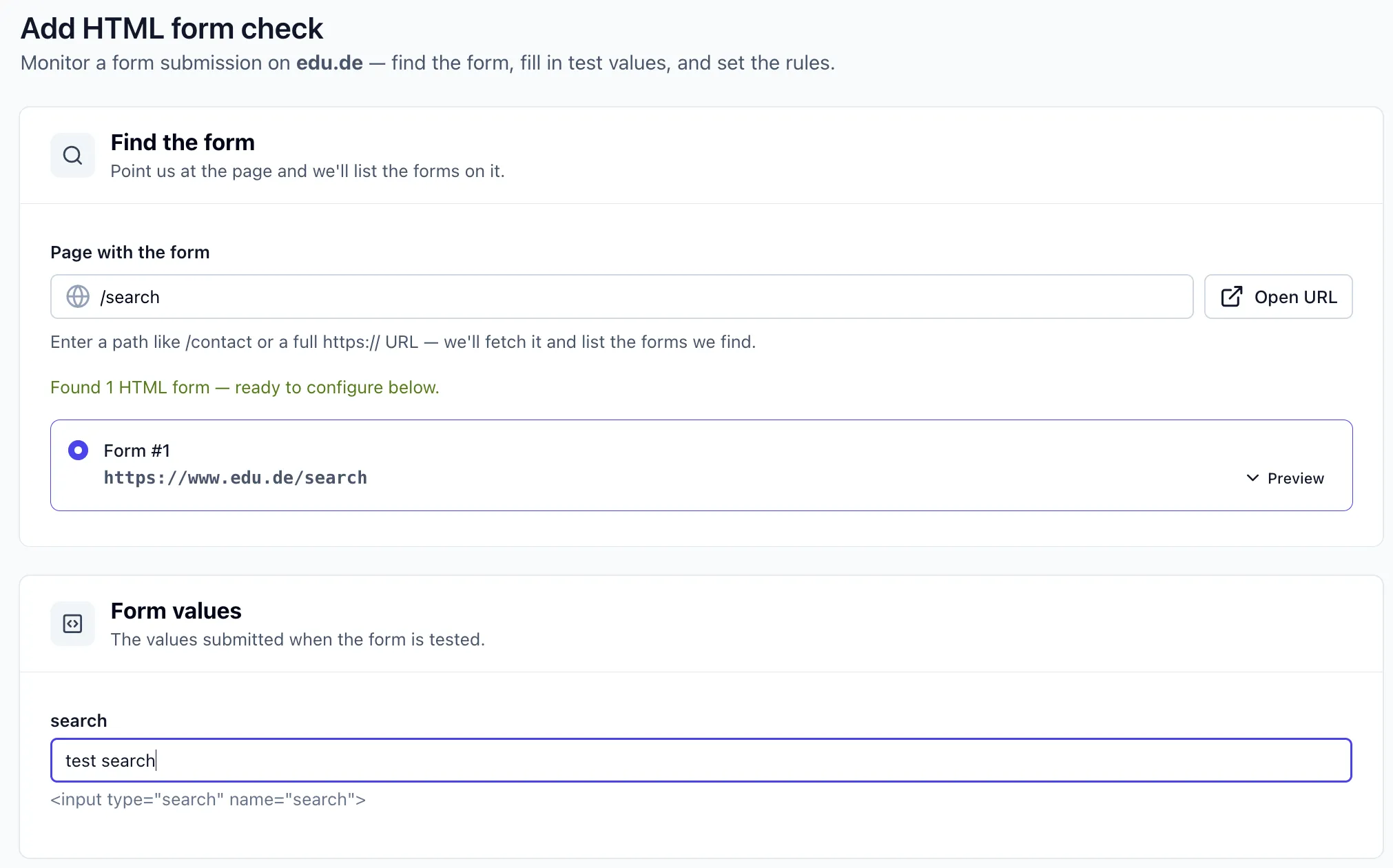
Choose the page with the form, then select which detected form you want to test. Fill in the values for each field — this is the data Testomato submits on every run — and save the check.
Add a HTTP Status Code check and a Page Content (Text) check. If the form redirects to a different page after a successful submission, see our redirect monitoring guide for how to confirm it lands where it should.
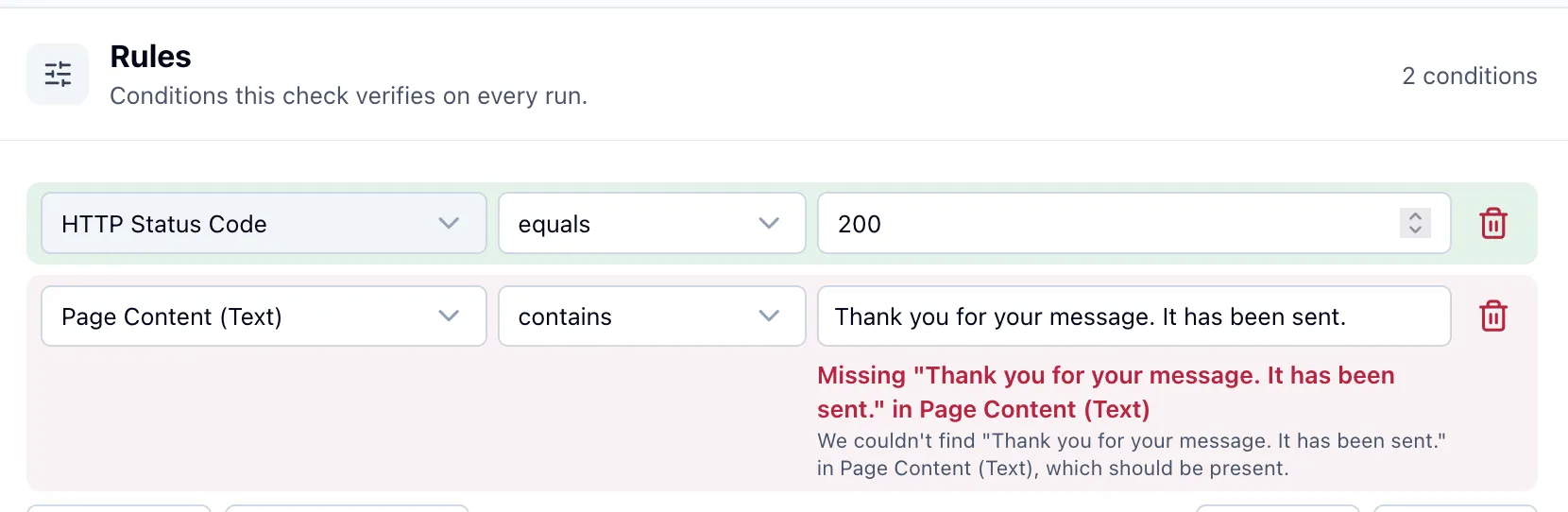
This is why both checks matter — the status code alone would have passed.
Filtering test results from real user data
Testomato’s form checks submit real data on a schedule, so it’s worth using values that won’t blend in with genuine submissions. Use a distinct test name or a dedicated email address — something you can filter out of your CRM or inbox without having to guess which entries came from monitoring and which came from an actual visitor.
Multiple forms on one page
If a page has more than one form, Testomato detects all of them and lets you pick which one to test. Each check tests one form, so add a separate check for each form on the page you want to monitor.
Authenticated forms
To monitor a form behind a login, set up a Group first. Add the page’s sign-in credentials — Testomato auto-detects the login form’s fields — then add your Form check inside that Group. The check inherits the Group’s login session, so it can reach forms a logged-out visitor couldn’t.

Written by
Rudi Kraeher